
How to Export Your Instagram or Threads Data (Step-by-Step)
By the Don’t Follow Back editorial team ·
If you want to see who follows you back (and who doesn’t), you’ll need your Instagram data export. Instagram doesn’t show this directly in-app—but they do let you download all of your account data.
This guide walks you through the export steps and shows which options to choose for the basic Follower Report or Advanced Insights.
Why Export Your Instagram Data?
- Track who unfollowed you
- See your followers vs. following list side by side
- Back up your account connections
- Use tools (like Don’t Follow Back) to analyze instantly
How do I get my Instagram data export?
Follow these steps inside the Instagram app. Each screen you see will look like the screenshots below.
Step 1 — Open Settings
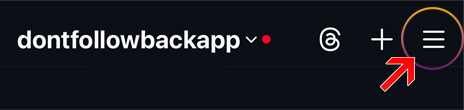
From your profile, tap Settings & privacy.
Step 2 — Go to Accounts Center
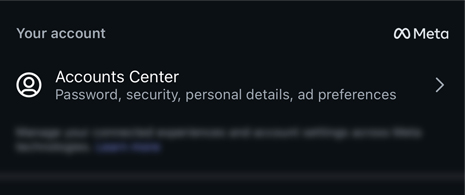
Scroll down and tap Accounts Center.
Step 3 — Your Information and Permissions
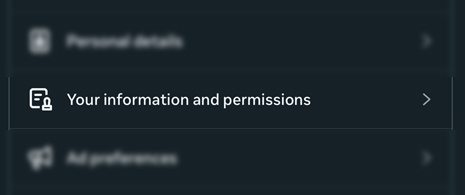
Choose Your information and permissions.
Step 4 — Export Your Information
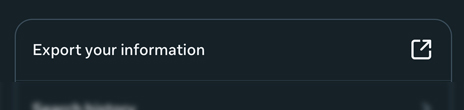
Tap Export Your Information.
Step 5 — Create Export
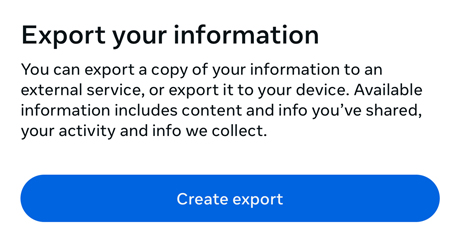
Tap Create export to begin.
Step 6 — Select Profile
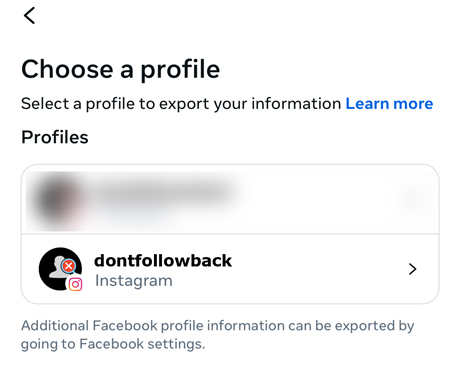
Choose the profile that matches the report you want:
- Select your Instagram profile for the Instagram Follower Report or Advanced Insights.
- If you are exporting Threads data, select your Threads profile or Threads tab when Accounts Center offers it. If Threads opens a separate official download flow, request the JSON export there.
- Keep one platform per ZIP. Do not combine an Instagram export and a Threads export.
Step 7 — Choose Where to Export
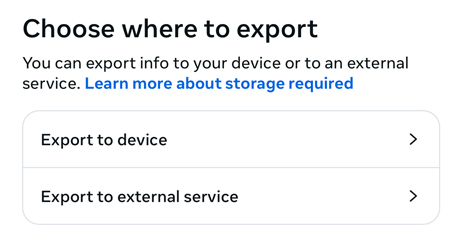
Select Export to device.
Step 8 — Customize Information
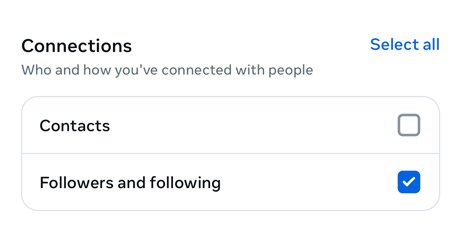
Tap Customize information to choose which categories of data to include.
Instagram often preselects many categories. The right selection depends on which report you want.
For the basic Follower Report
- Connections -> Followers and Following
- You may uncheck Contacts and other categories you do not need.
For Advanced Insights
Keep the categories that contain the activity you want to review:
- Your Instagram activity -> comments, likes, saved items, stories viewed, videos watched, searches, and links
- Connections -> Followers and Following
- Ads information -> advertiser and targeting records
- Personal information -> profile details and profile changes
- Logged information -> account activity records
- Apps and websites and Preferences -> additional account activity when available
You can leave Messages unchecked. DFB does not read or analyze private message bodies.
Important: Deselect media. Do not include photos, videos, or other media files. DFB reads the supported JSON records and does not process media bytes. Media can turn an export into hundreds of megabytes, make the upload take much longer, or cause the upload to be rejected. A large export such as 340 MB is not a supported upload.
Step 9 — Confirm Your Export
Before you submit, set:
- Format: JSON
- Date range: All time
- Media: leave media unchecked if this option appears.
Then tap Create export (or Start export).
After You Export
- Instagram will prepare your file.
- You’ll get an email (or notification) with a download link.
- Save the ZIP file to your device.
That’s it — you don’t need to unzip or search through files yourself.
What To Do Next
Now that you have your export, the easiest way to analyze it is to upload the ZIP directly to Don’t Follow Back.
After upload, the basic Follower Report can show:
- Who does not follow you back
- Follow requests that were never accepted
- Your most loyal followers
With a fuller export, Advanced Insights can also organize the activity, saved items, comments, searches, ads, profile history, and other supported records Instagram included in your ZIP.
Note: Mutual followers may appear in your “don’t follow back” list if they’ve deactivated their account.
Instagram excludes deactivated accounts from your following list.
Wrap-Up
Exporting your Instagram data is quick once you know where to tap.
Do it once, and you’ll have a clear snapshot of your audience. Do it monthly or quarterly, and you’ll be able to track unfollowers over time.
Ready to see your results? Upload your export here and find out who’s really following you back.